
Learn how to create professional, AI-powered presentations for free using Google Gemini. A complete step-by-step guide with visuals, FAQs, and smart tips—goodbye PowerPoint and Gamma AI!
Create Beautiful Presentations with Google Gemini — For Free in 2025
🌍 Introduction — The End of Expensive Presentation Tools
For years, creating sleek, professional presentations meant juggling tools like PowerPoint, Canva Pro, or Gamma AI—all great, but often locked behind pricey subscriptions. Now, thanks to Google Gemini, anyone can design stunning, interactive slides powered by AI, for free.
This guide will walk you through how to use Google Gemini to generate beautiful presentations using only your Google account—no credit card or downloads required.
SEO Keywords: Google Gemini presentations, AI slides generator, free alternative to Gamma AI, AI presentation tool 2025
🚀 Step 1: Access Google Gemini
- Go to https://gemini.google.com.
- Log in with your Google account (the same one used for Docs or Drive).
- Once inside, you’ll see a simple chat interface—similar to ChatGPT or Gemini Advanced.
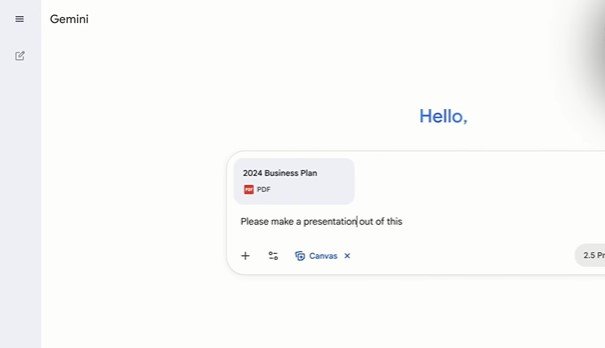
🧩 Step 2: Ask Gemini to Create a Presentation Outline
Type a clear prompt such as:
“Create a 10-slide presentation about digital minimalism with headings and short bullet points for each slide.”
Gemini will instantly produce a structured outline that you can preview, edit, and refine.
💡 Pro tip: Ask Gemini to format the slides in Markdown or numbered lists—this makes copying to Slides much smoother.
🎨 Step 3: Generate Visuals for Each Slide
Gemini integrates tightly with Google Images and Slides. You can request visuals directly:
“Find a royalty-free background image of minimalist workspace for my presentation.”
Then simply copy the image link or save it.
SEO Note: Mention “royalty-free” or “public domain” images for best results and legal safety.
🧱 Step 4: Convert the Outline into Google Slides
Once you’re happy with your outline, say:
“Turn this outline into a Google Slides presentation.”
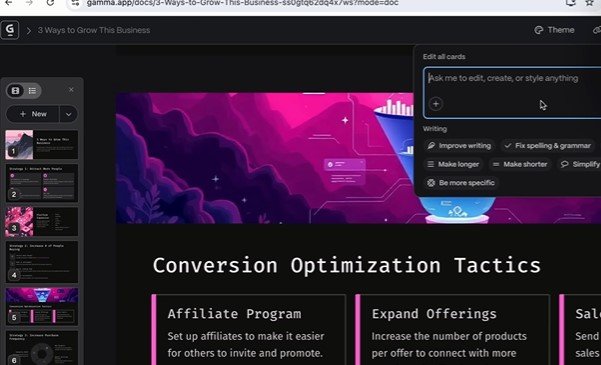
Gemini will automatically generate a Google Slides deck link (you’ll be asked to authorize Drive access). You can then open it, customize the fonts, colors, and layouts using Google’s design tools.

✏️ Step 5: Customize & Add Your Brand
To make your presentation stand out:
- Add your logo or website URL in the footer.
- Use your brand colors consistently.
- Add AI-generated visuals or icons from sites like Unsplash, Pexels, or Flaticon.
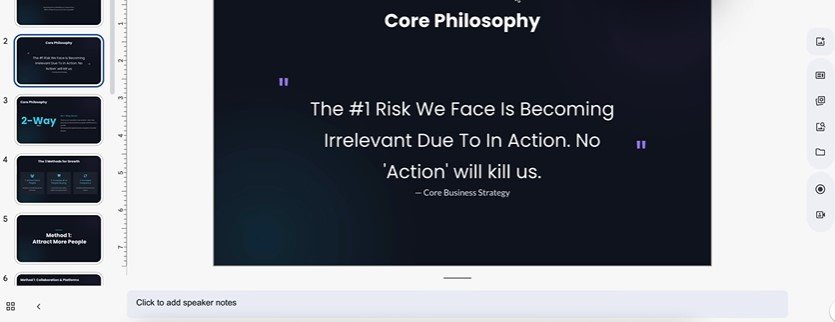
🌈 Step 6: Export, Share, or Present Instantly
When your slides are ready:
- Click File → Download → PDF to share offline.
- Or use Present directly from Google Slides for a smooth, no-install experience.
Gemini presentations auto-save in Google Drive, meaning you can edit anywhere—desktop or mobile.
⚙️ Optional: Use Gemini Advanced for Smart Enhancements
If you want to go even further, Gemini Advanced lets you:
- Generate slide designs automatically.
- Write speaker notes for each slide.
- Add AI-made charts and infographics using data you upload.
❓ Frequently Asked Questions (FAQ)
1. Is Google Gemini free to use for presentations?
Yes. The base version of Google Gemini is completely free and accessible with a standard Google account. Advanced users can opt for Gemini Advanced (paid) for more creative control and extra features like long-form generation.
2. Can Gemini automatically create a full slideshow?
Yes, Gemini can generate a structured presentation outline and, with Google Drive access, turn it into an editable Google Slides file. It won’t yet design custom layouts automatically, but it gets you 80% of the way there.
3. How is Gemini different from Gamma AI or PowerPoint?
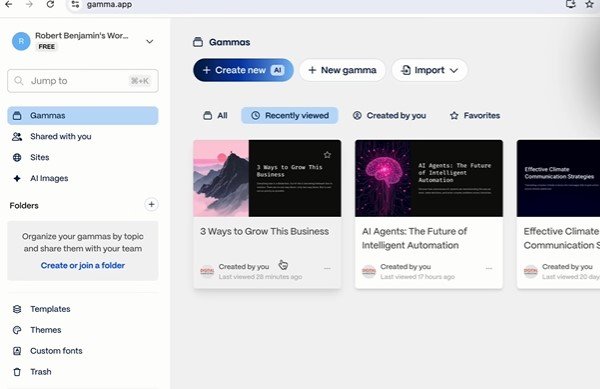
Unlike Gamma AI or PowerPoint, Gemini is part of Google’s ecosystem—meaning you can generate, edit, and present slides directly inside Google Workspace for free. It’s conversational, integrated, and lightweight.
4. Can I use Gemini for business or client presentations?
Absolutely. You can use it for professional, educational, or marketing presentations. Just make sure that any images or media you use are labeled for commercial reuse.
5. Does Gemini include ready-made templates or themes?
Currently, Gemini relies on Google Slides templates. Once Gemini generates your slide outline, you can open the presentation in Slides and apply your preferred theme or template instantly.
6. What file types can I export from a Gemini-created presentation?
Presentations generated through Gemini and Google Slides can be exported as .PPTX, .PDF, or .ODP files, or shared via a public link directly.
7. Is Gemini better than ChatGPT for creating presentations?
Both are powerful, but Gemini integrates natively with Google Slides and Drive—making it a more seamless option for presentation building. ChatGPT can generate slide content, but you’ll need to manually move it into a presentation tool.
8. Will my presentation get flagged as AI-generated?
No. Presentations created with Google Gemini will not be flagged as AI-generated when exported or shared. Gemini doesn’t insert AI watermarks or metadata. Your exported file is treated like a regular document unless you explicitly disclose AI use.
9. Does Gemini add hidden AI metadata or fingerprints?
No. Gemini’s outputs are plain text and formatting — it doesn’t embed hidden AI identifiers or “fingerprints.” Once exported through Google Slides, there’s no technical trace that shows it was generated with AI.
10. Can AI detectors tell if my Gemini content is machine-written?
Highly unlikely. AI detectors focus on long-form written text, not slides or bullet points. Since presentations rely on visuals and short phrasing, they don’t fit the patterns detectors analyze — making them effectively undetectable as AI.
11. Will Google or my school know if I used Gemini to make my slides?
No. Google doesn’t flag or label Gemini-created content in your account. Your slides are private by default, and unless you share the source chat or disclose Gemini use, no one can tell.
12. Are there copyright issues when using Gemini for visuals or content?
Only if you use copyrighted images or media. Gemini can link to public images, but it’s your responsibility to ensure they’re licensed for reuse. Use platforms like Unsplash, Pixabay, or Pexels for safe, free visuals.
13. Can I make money from Gemini-created presentations?
Yes — you can use Gemini-generated content commercially, including selling templates, e-learning slides, or design work. Just avoid redistributing copyrighted material or impersonating another brand’s design.
14. Does Gemini store or share my generated presentations?
Gemini stores your chat history in your Google account (just like Docs or Gmail), but you control your data visibility. You can delete individual chats or disable history anytime in the Gemini settings menu.
🏁 Conclusion — The Future of Presentations is Free and Smart
Goodbye, PowerPoint. Goodbye, Gamma AI. In 2025, Google Gemini makes creating powerful, visually-stunning presentations as easy as chatting with an AI.
Whether you’re a student, marketer, or creator, you can now turn ideas into slides instantly—and without paying a cent.
#GoogleGemini #AIPresentations #FreeTools2025 #DigitalCreativity #AITechTrends #AITrendsDaily #GoogleSlides #AIProductivity